
Now in Brisbane
Unlock GoGet cars with your phone
No more fishing around for a card. With Phone Unlock, the GoGet app on your phone is all you need to get in and get going.
Which does my car use?
Every GoGet car is either Phone unlock or Card unlock. You'll see which one in four places, so there's no guessing at the pod.
-
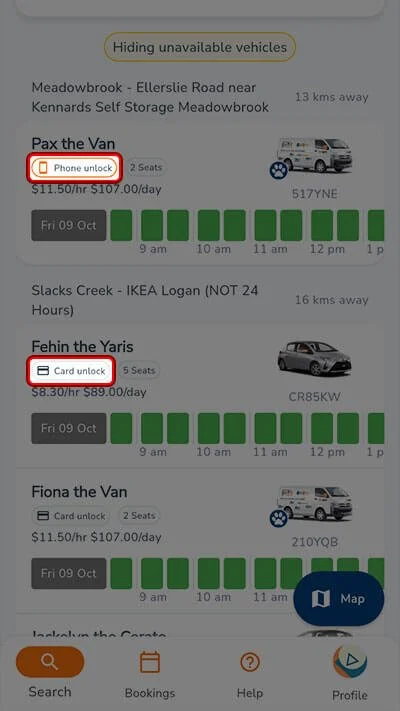
When you search
Each car in the search results shows how it unlocks, before you book.
-
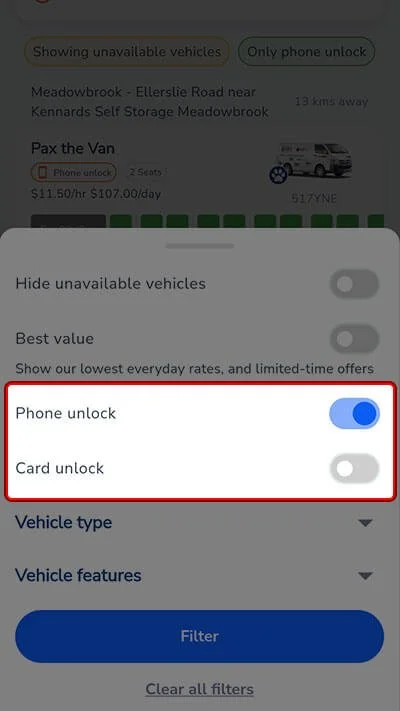
In the filters
Turn the Phone unlock or Card unlock toggles on or off to see only the cars you want.
-
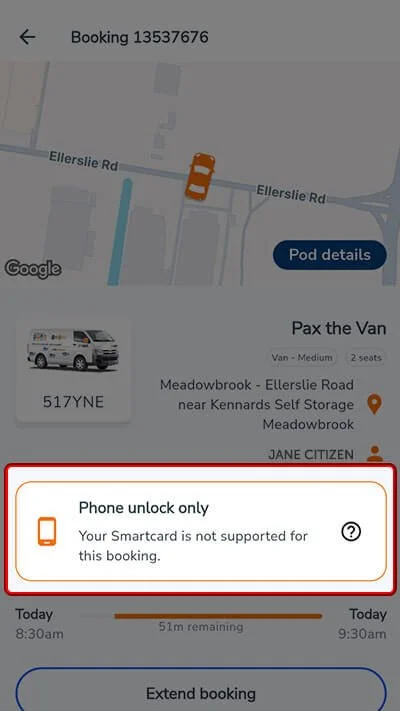
In your booking
Open your booking in the app to check how that car unlocks.
-
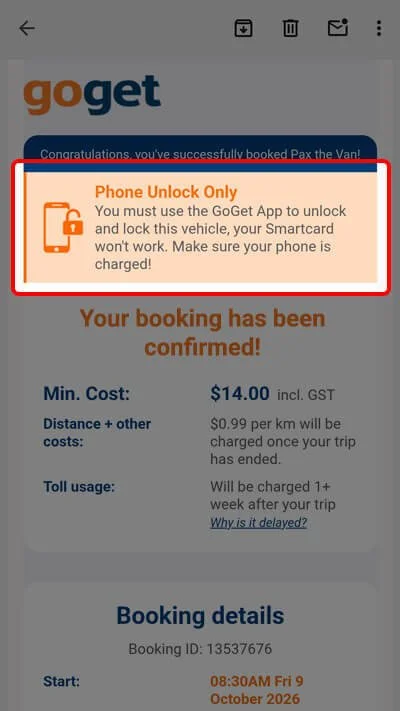
In your confirmation email
Your booking confirmation tells you whether to bring your smartcard or use your phone.
Meet the upgrade
Same GoGet cars, same easy booking, and a much smarter way in.
| Topic | SmartcardThe old way | Phone UnlockThe new way |
|---|---|---|
| Getting set up | Wait for your card in the post or pick one up, then activate it | Log in to the GoGet app and you're ready to roll |
| Getting in | Find your card and tap it on the card reader | Tap Activate Phone Unlock, then Unlock, right from your phone |
| Locking up | Tap your card on the reader again | Tap Lock in the app and you're off |
| Sharing the driving | Every driver needs their own smartcard | Every driver uses the phone already in their pocket |
| What to carry | One more card in your wallet | Just your phone |
Before your first Phone Unlock trip
A quick setup before your first trip and you're ready to go.
- Update the GoGet appGrab the latest version from the App Store or Google Play.
- Log in on your own phonePhone Unlock works on your phone, with your login. Check you can log in before the day.
- Turn on BluetoothYour phone talks to the car over Bluetooth when you're close by.
- Charge your phoneYour phone is how you get in and out, so head off with plenty of battery.
- Sharing the driving?Every driver needs to be on the account, with the app and their own login on their own phone.
Step by step
From the pod to the end of your trip.
-
 Step 1
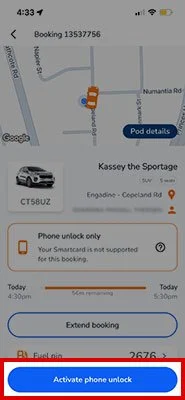
Activate Phone Unlock
- From 10 minutes before your booking starts, open your booking in the app and tap Activate Phone Unlock.
- If the car's free, you can get in from then. Otherwise, if someone else's booking ends at your start time, Lock and Unlock switch on when your booking starts.
- Need the car earlier? If it's free, tap Start Now from 30 minutes before to bring your booking forward. You'll see the extra charge before you confirm.
-
 Step 2
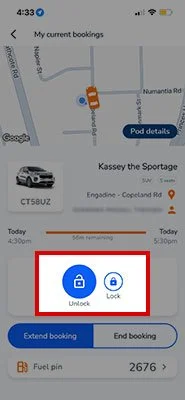
Lock and unlock from the app
- Lock and Unlock appear once you've activated. They light up when you're close to the car, and the app tells you why if they're greyed out.
- Once activated, Lock and Unlock keep working even if you lose signal during your trip.
- The keys are inside the car, as usual.
-
 Step 3
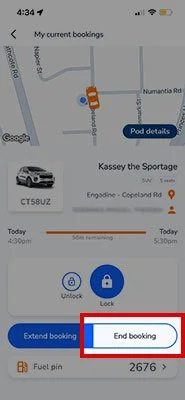
Finish your trip
- Park back at the pod, switch off the engine and take the keys out of the ignition.
- Tap Lock in the app before you walk away, then check the doors.
- All done? Tap End Booking to wrap up. It works once the engine is off and the car is back at its pod. Your booking time stays the same, so ending early doesn't change what you pay.
- Tapped End Booking but need to get back in before your booking ends? Tap Resume Booking.
Heading underground? Activate first.
Some pods are in carparks with little or no signal. Tap Activate Phone Unlock before you head down. Once it's done, Lock and Unlock work without signal. If you lose signal before activating, you'll need to head back up to finish it.
Sharing the driving
Need more time?
Extend in the app before your booking ends to keep access. Here's how access works if you're running late.
- During your bookingLock and Unlock work as normal. Extend in the app any time, if the car's free. Extensions run to the next half hour.
- Up to 10 minutes lateLock and Unlock still work as normal while you get back to the pod.
- More than 10 minutes lateTo unlock, extend your booking first, right from the app. You can still lock without extending.
- One hour after your end timeLock, Unlock and Activate Phone Unlock switch off. To get back in, make a new booking if the car's free, or call us.
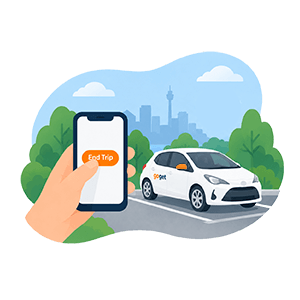
Someone's booked after you
You won't be able to extend. Tap End Trip once you're back at the pod, or call us if you can't make it in time.
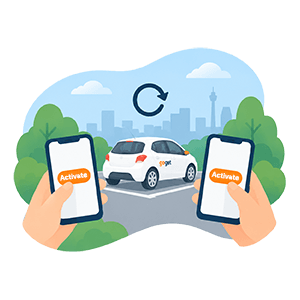
Sharing the driving and extending
When anyone extends, every other driver needs to open the app and tap Activate Phone Unlock again.
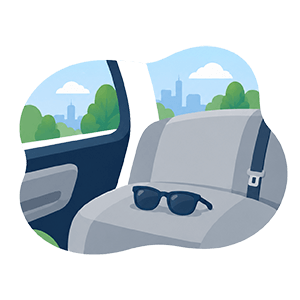
Left something in the car?
Haven't tapped End Trip? Just tap Unlock in the app. Already tapped it? Tap Restart Trip before your booking ends. After that, make a new booking if the car's free, or call us and we'll help.
Troubleshooting
I can't log in to the app
Phone Unlock works when you're logged in to the GoGet app on your own phone. If you can't log in, call us on 1300 769 389 and we'll help.
My phone is flat, lost or broken
Call us on 1300 769 389 and we'll help. Heading off with a charged phone keeps you rolling.
Lock and Unlock are greyed out
Check Bluetooth is on and move closer to the car. If another booking is running until your start time, the app tells you when the car's free. Still stuck? Call us on 1300 769 389.
I can't tap Activate Phone Unlock
Activate Phone Unlock appears 10 minutes before your booking starts and needs signal. If you're underground, head somewhere with signal and try again.
End Trip won't work
End Trip needs the engine off and the car parked back at its pod. The app tells you what's stopping it. You can still tap Lock and walk away. If it keeps happening, call us on 1300 769 389.
Still need a hand?
Our team is here for you 24/7.
Hang on to your smartcard, for now
Your smartcard still opens every Card unlock car in Sydney, Melbourne and Canberra. Even if you mostly drive in Brisbane, keep it in your wallet for trips interstate.
Activate or replace your card
New smartcard? Activate it in the Smartcard section of the GoGet app. Lost yours? Call us on 1300 769 389 and we'll help.
FAQs
Do I still need my smartcard?
Yes. While Brisbane cars can be unlocked with your phone, cars in other locations still require a smartcard. Please keep your smartcard with you until all cars have been upgraded.
Can I still get in early?
Yes. From 10 minutes before your booking starts, you can get in at no extra cost, as long as the car is free. Need it earlier? Start Now lets you bring your booking forward from 30 minutes before, for the standard extra charge.
Can I hand my phone to someone else to drive?
Every driver needs to be on the account and use their own phone and login. Add them as a driver on your account so they can activate Phone Unlock themselves.
Does it work without signal?
Yes. Once you're logged in and you've tapped Activate Phone Unlock, Lock and Unlock keep working without signal. Logging in and activating need signal, so do both before you head into an underground carpark.
Do I have to tap End Trip?
It's the neat way to wrap up your trip, and it sends a lock command to the car. Either way, tap Lock before you walk away and check the doors.
How do I find Phone Unlock cars?
Every car in the app shows Phone unlock or Card unlock. Use the Phone unlock and Card unlock toggles in the app filters to see only the cars you want.
Ready when you are
Update the GoGet app, log in, and you're set for your next Phone Unlock trip.